To download files and folders of a specific design pod, access the Design Pod Details by clicking on a specific thumbnail in the library.
Example below shows the Library, with BULK EXPORT near the bottom of the left sidebar.
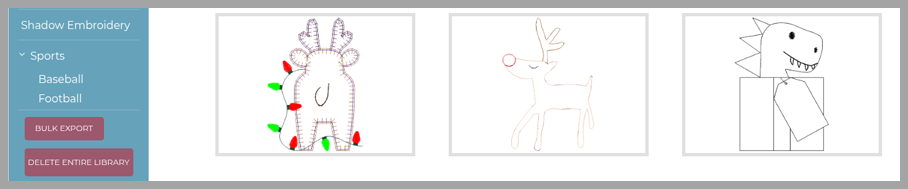
NOTE: Bulk download of more than one design pod is accomplished through the BULK EXPORT button near the bottom of the left sidebar of the library. It sits just above DELETE ENTIRE LIBRARY, so check that you click BULK EXPORT.
Example: the file list in Design Pod Details, with a Download link on each row
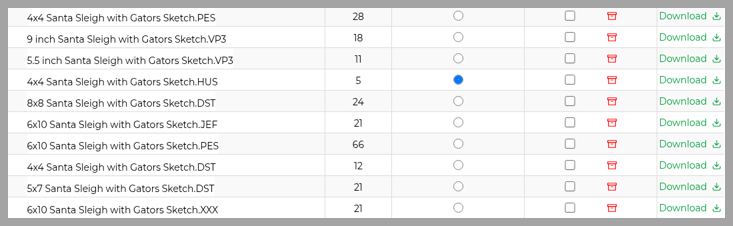
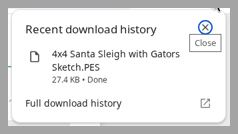
To download a single file, click on the green Download link. It has a small down-arrow icon. A message then appears: "Success: File is processed. The download prompt will appear soon." Depending on the internet browser, you may receive different messages. See below message for Google Chrome. This file was successfully downloaded to the computer's Downloads folder for further use. EEganizer allows unlimited downloads of any file or folder.