
Want to give a whole batch of Design Pods the same category or note? Bulk Select lets you pick several Pods on your Library page and tag them all in one go, instead of opening each Pod one at a time.
Step 1: Turn on Bulk Select
Go to your Library page and click BULK SELECT. The button changes to EXIT BULK SELECT while it's on, and the Bulk Select panel opens above your designs.
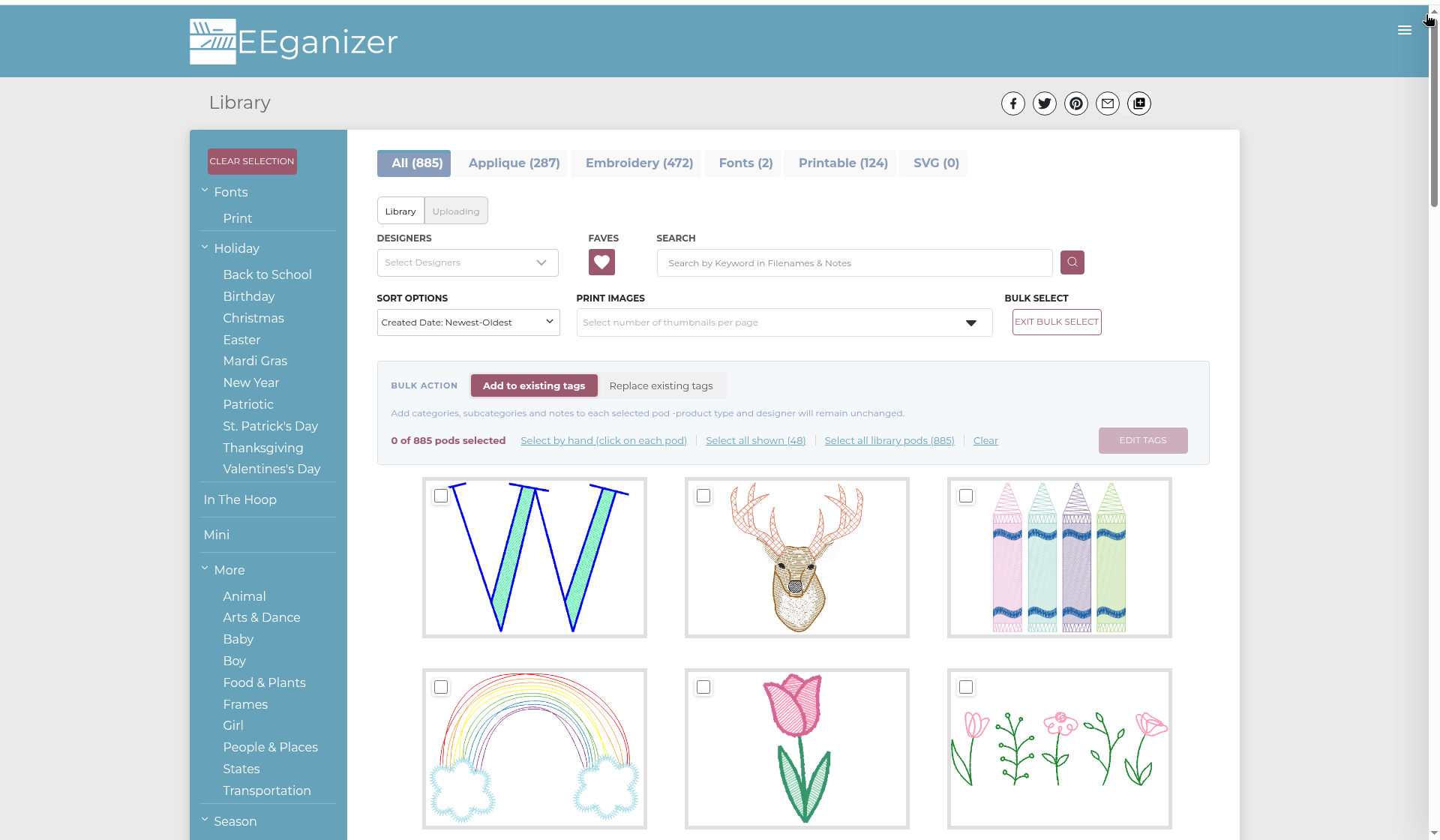
Step 2: Pick your Pods
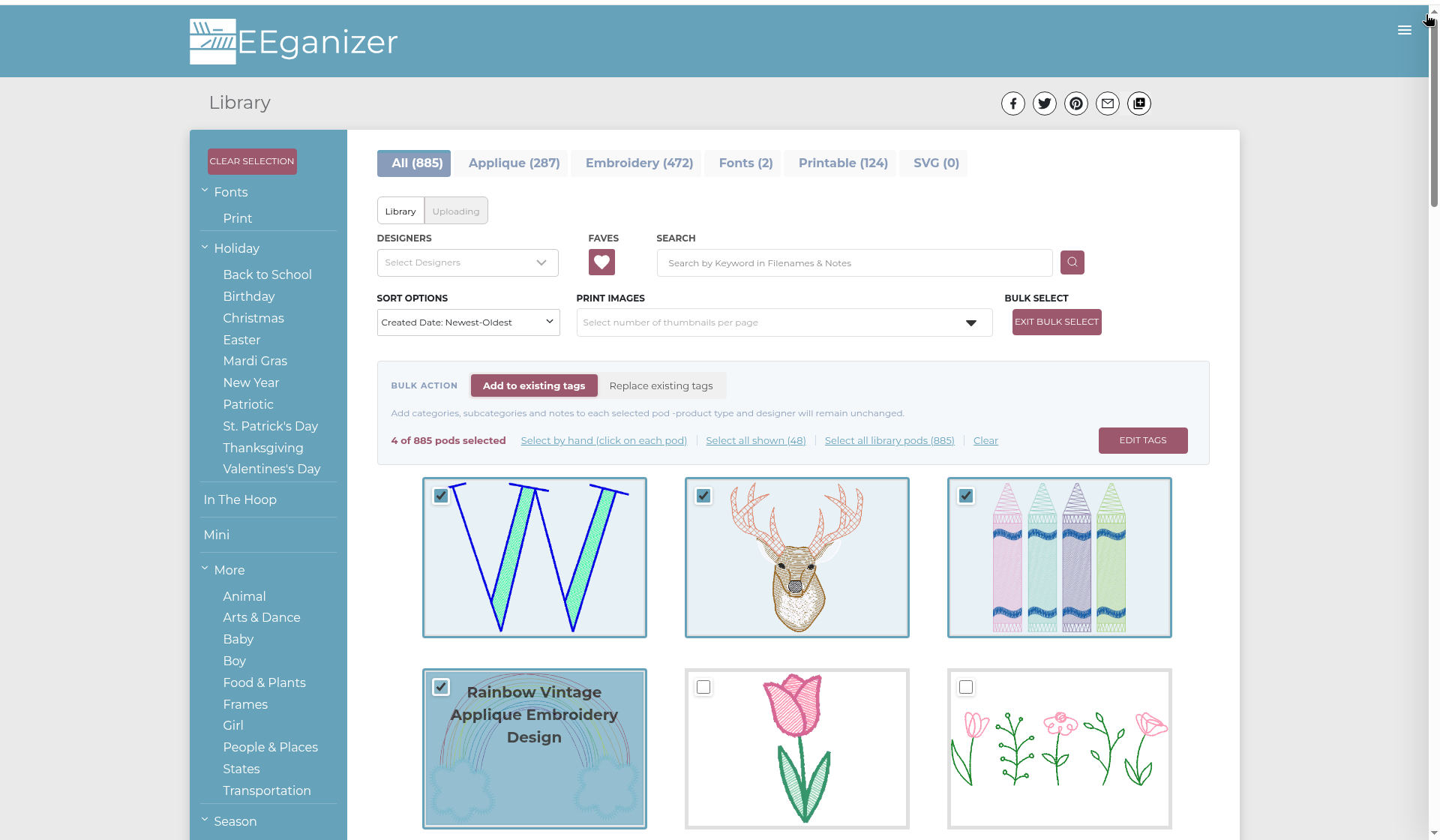
Choose your Pods in the panel:
- Select by hand (click on each pod): click each Pod you want.
- Select all shown (N): selects every Pod showing on your screen.
- Select all library pods (N): selects every Pod in your library.
The panel keeps count for you, for example 4 of 885 pods selected.
Tip: Want just one group, like all your deer designs? Search or filter your Library first, then click Select all shown (N). It picks the Pods showing in your grid.
Tip: Picked the wrong ones? Click Clear in the panel to start over.
Step 3: Choose Add or Replace
In the panel, pick how your changes are saved:
- Add to existing tags adds categories, subcategories and notes to each selected Pod. Product type and designer stay unchanged.
- Replace existing tags swaps out what you fill in. If you pick new categories, they replace the old categories on every selected Pod. If you type a note, it replaces the old note. Anything you leave blank stays the same. This is also the only way to set the product type and designer, since a Pod has only one of each.
A gentle heads-up: whatever you fill in replaces the old tags in that spot. If you only want to add a tag, choose Add to existing tags.
Step 4: Click EDIT TAGS
Click EDIT TAGS. The Add Tags dialog opens and shows how many designs you've selected.
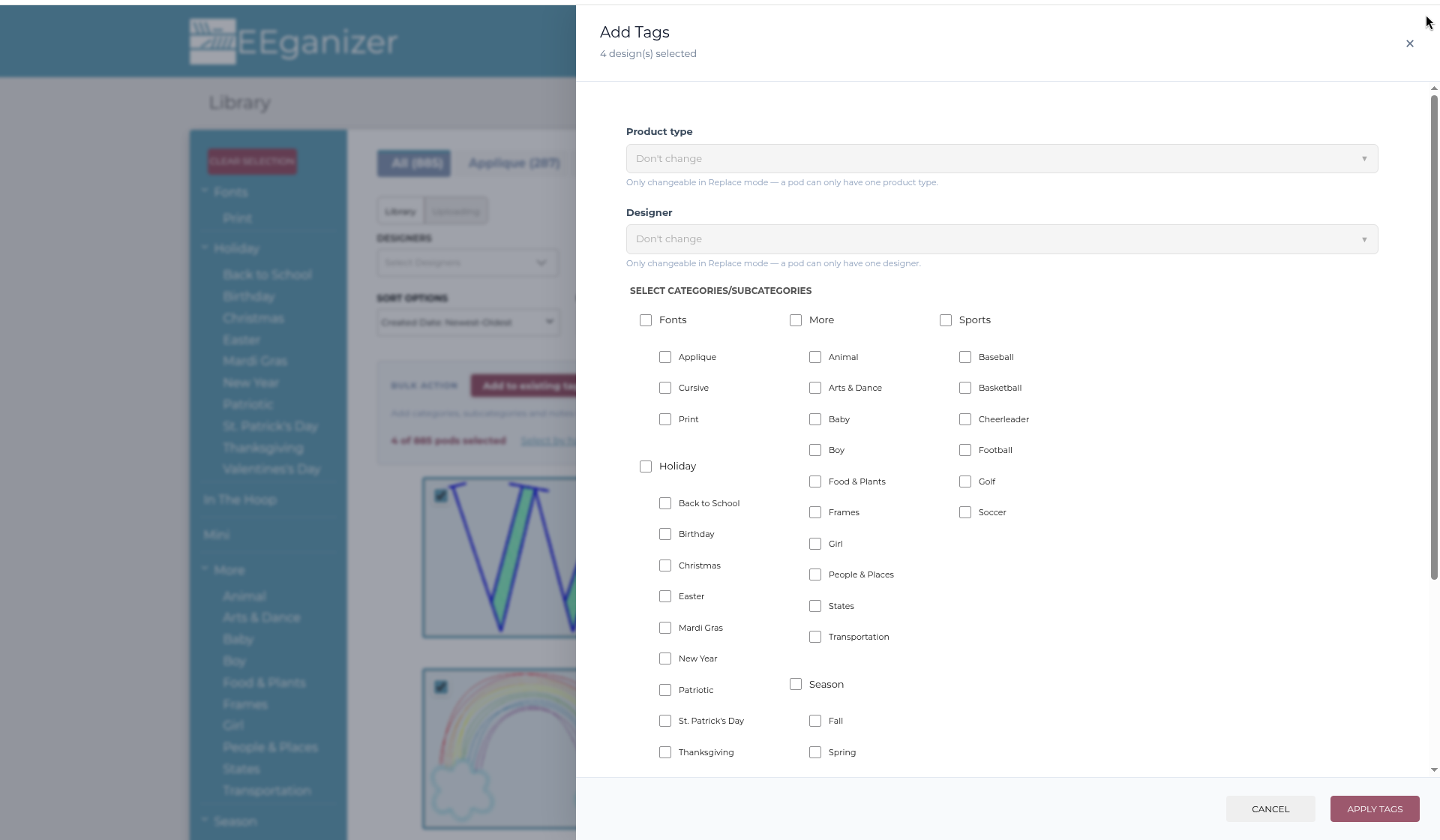
If you chose Replace existing tags, you can also pick a Product Type and Designers at the top of the dialog.
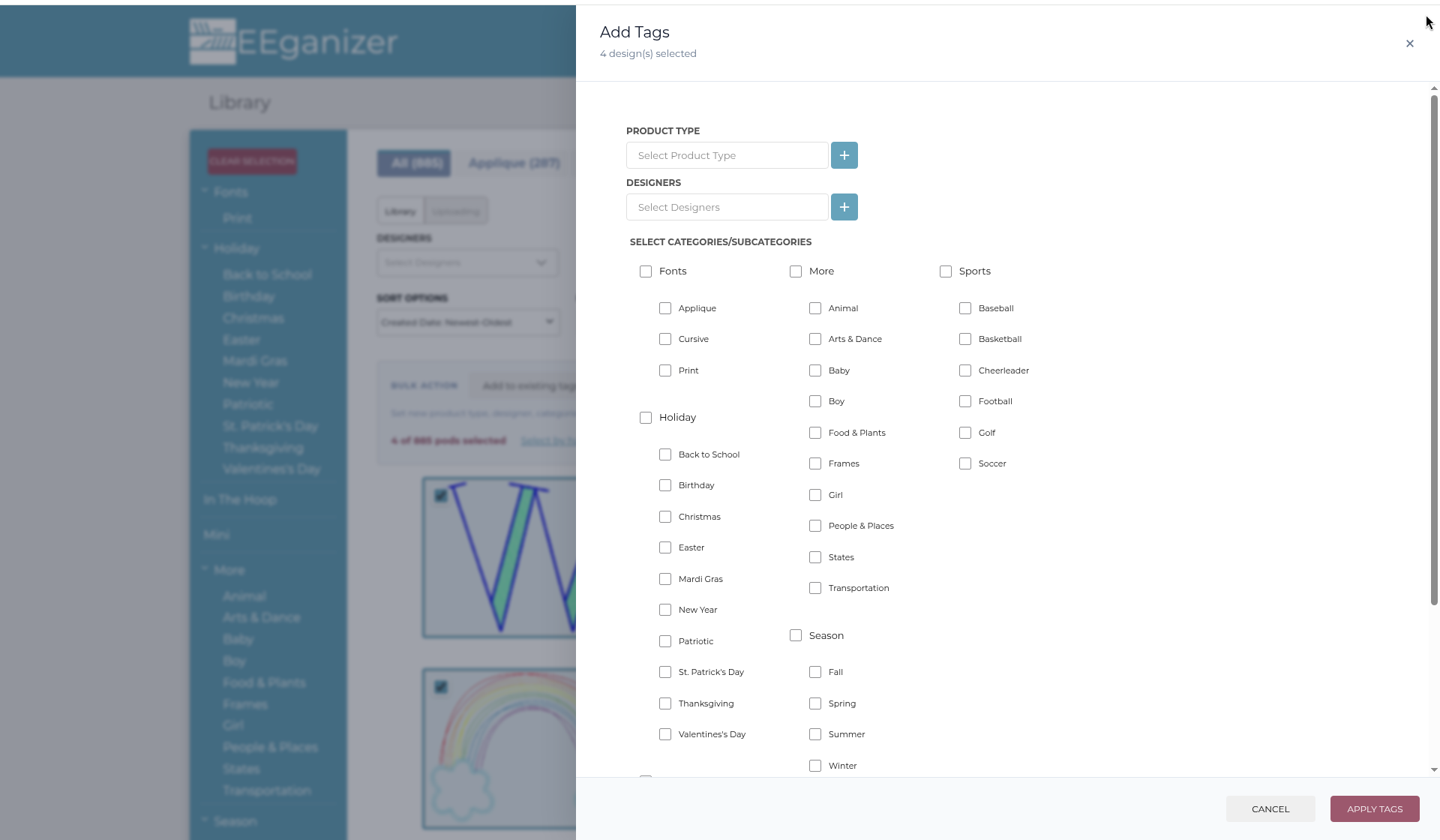
Step 5: Click Apply Tags
Pick your tags, then click Apply Tags. Every selected Pod gets the same changes. Changed your mind? Click Cancel and nothing is saved.
When you're done, click EXIT BULK SELECT.
Good to know
- Bulk Select is included on every EEganizer plan.
- For now, use Bulk Select on a computer. It doesn't show on smaller screens, like an iPad mini.
- Need a tag that isn't on your list yet? Create it first, then come back to Bulk Select. See Create a Category and Sub-Category Tag.
- To change just one Pod, see Editing Design Pod Details.
- New to Pods? See What is a Design Pod?
Still stuck? Search the Help Center at help.eeganizer.com, or write to us and we're happy to help you personally.