
Library Setup is a service that sorts your design files into Design Pods and uploads them to your EEganizer library for you.
Please note: Library Setup is in beta. It handles most files well, but it is not perfect at reading every single file yet.
Here is what each screen looks like, so you know what to expect. Nothing is charged until you approve the plan.
Step 1: Start
- Open the page: Go to eeganizer.com/library-setup to get started.
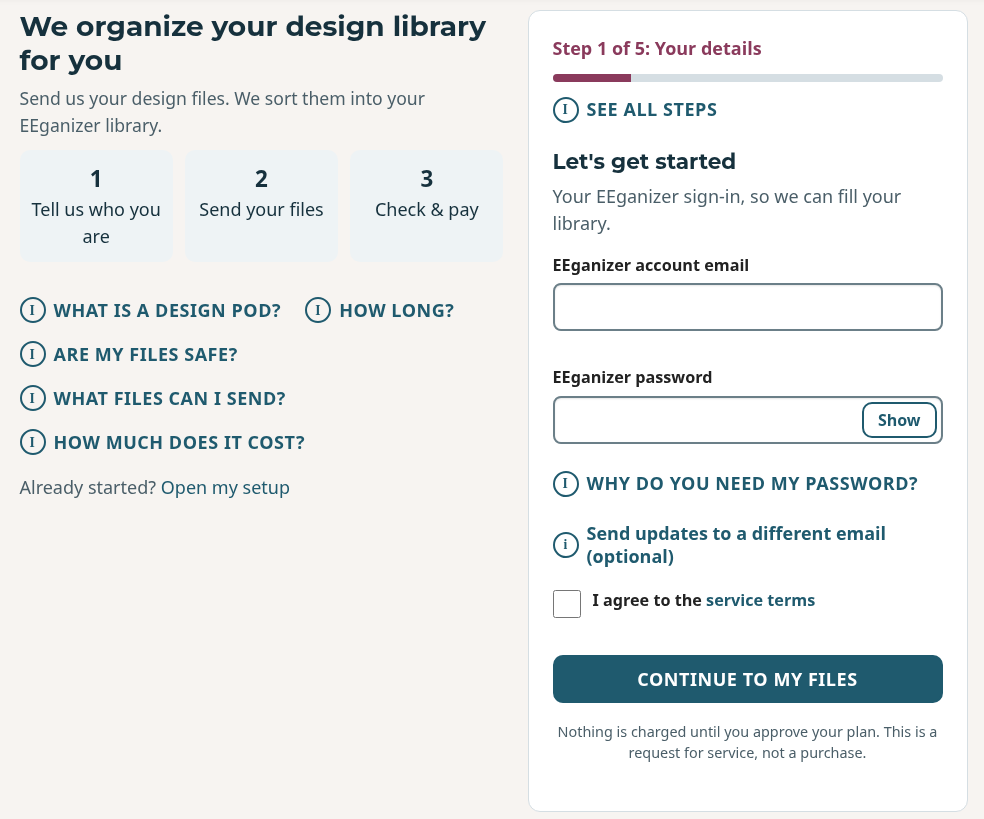
- What happens next: You move on to Step 2, where you send your design files.
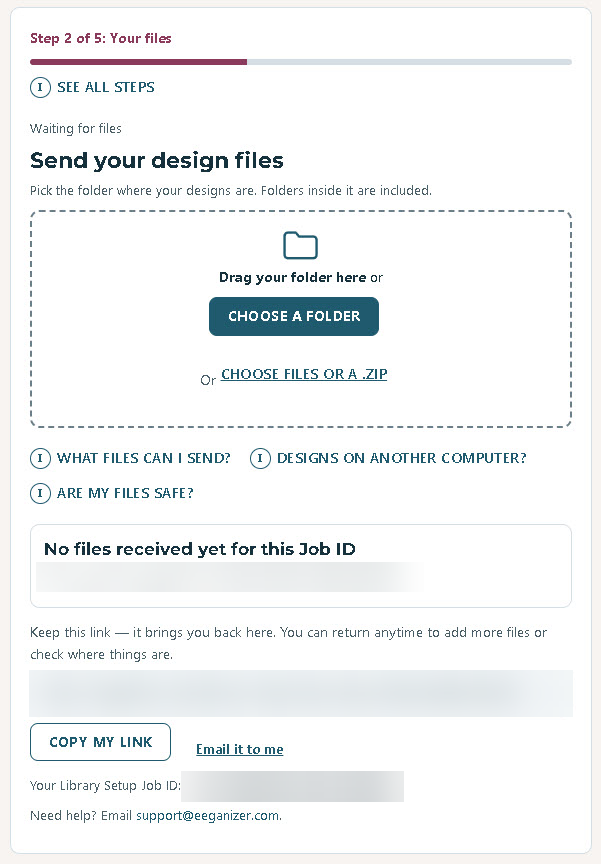
Step 2: Send your files
- Choose your files: Click Choose a folder to send a whole folder. Folders inside it are included. To pick single files or a ZIP, click Choose files or a .zip. For help, click What files can I send?, Designs on another computer? or Are my files safe?
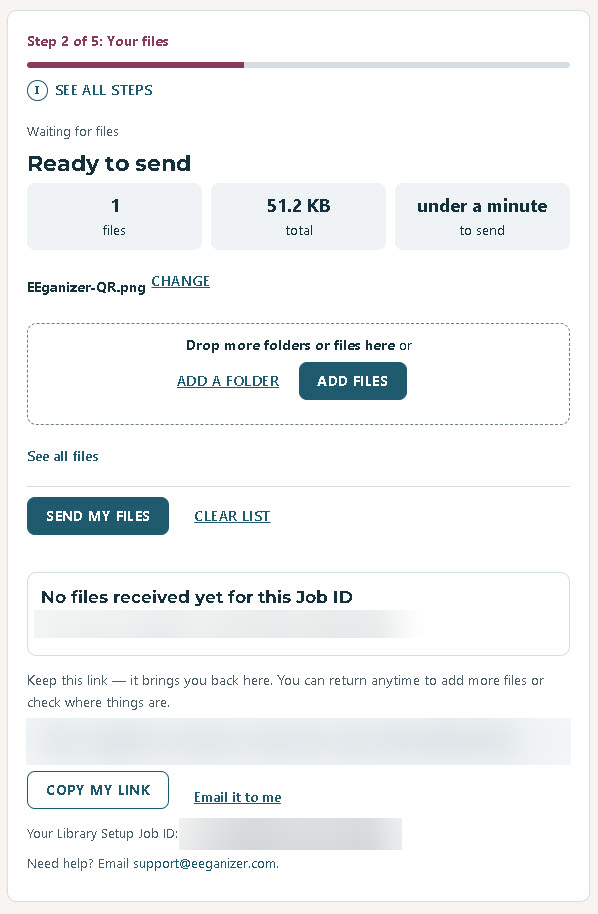
- Check and send: The Ready to send screen shows how many files you picked and their total size. Click Add a folder or Add files to add more, or Clear list to start over. When it looks right, click Send my files.
- Send more, or finish: When your files arrive, you see "Your file arrived." They are listed under Files we already have. If you pick one again, we skip it. Have more? Click Send more files. When everything is in, click I have sent everything. This starts sorting and cannot be undone, so click it only when you are done.
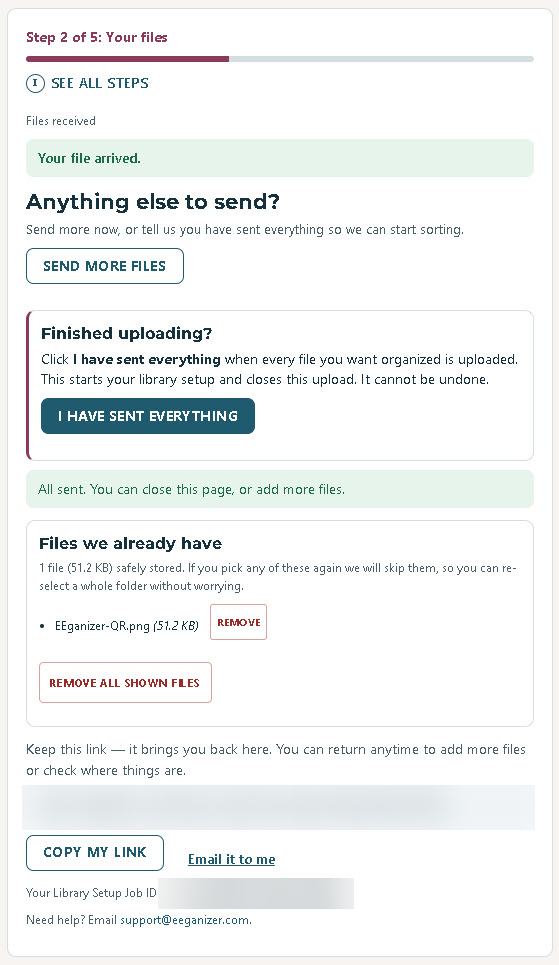
- What happens next: We start sorting your designs into a plan. Questions? Email support@eeganizer.com.
Step 3: Check your plan
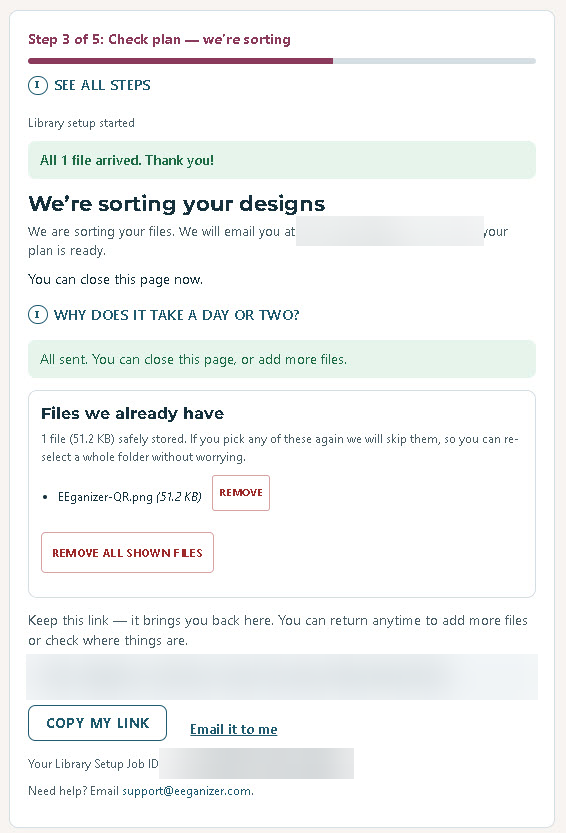
- We sort your designs: You see "We're sorting your designs." This usually takes a day or two. We email you when your plan is ready, so you can close the page.
- Your plan is ready: Use the link in our email to open your plan. The top shows your Design Pods, files to upload and anything Unassigned. Happy with it? Click Approve and pay. Want a closer look first? Click I'll do the review.
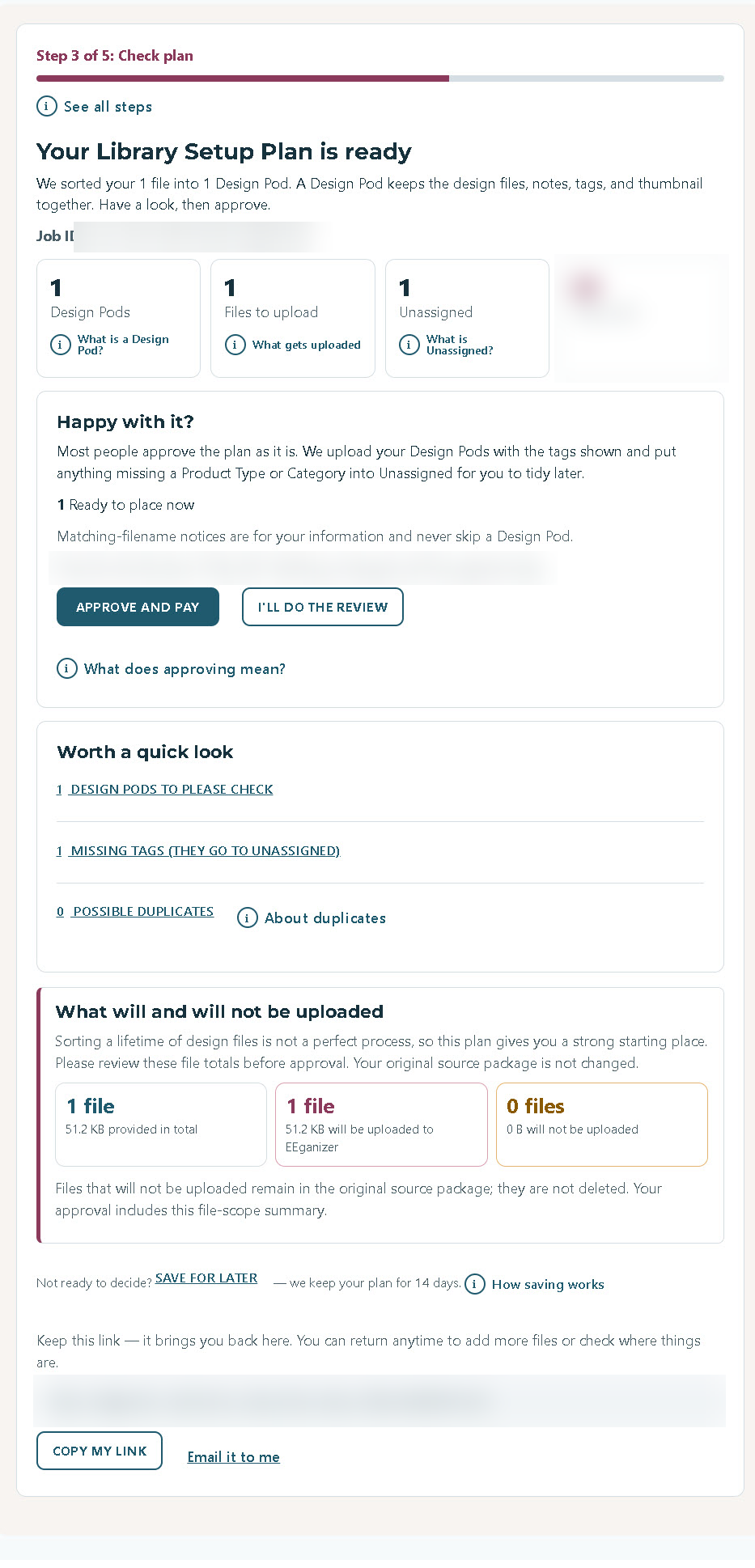
- Worth a quick look: This box lists any Design Pods to please check, missing tags and possible duplicates. Below it, What will and will not be uploaded shows your file totals. Your original files are not changed. Not ready yet? Click Save for later. We keep your plan for 14 days.
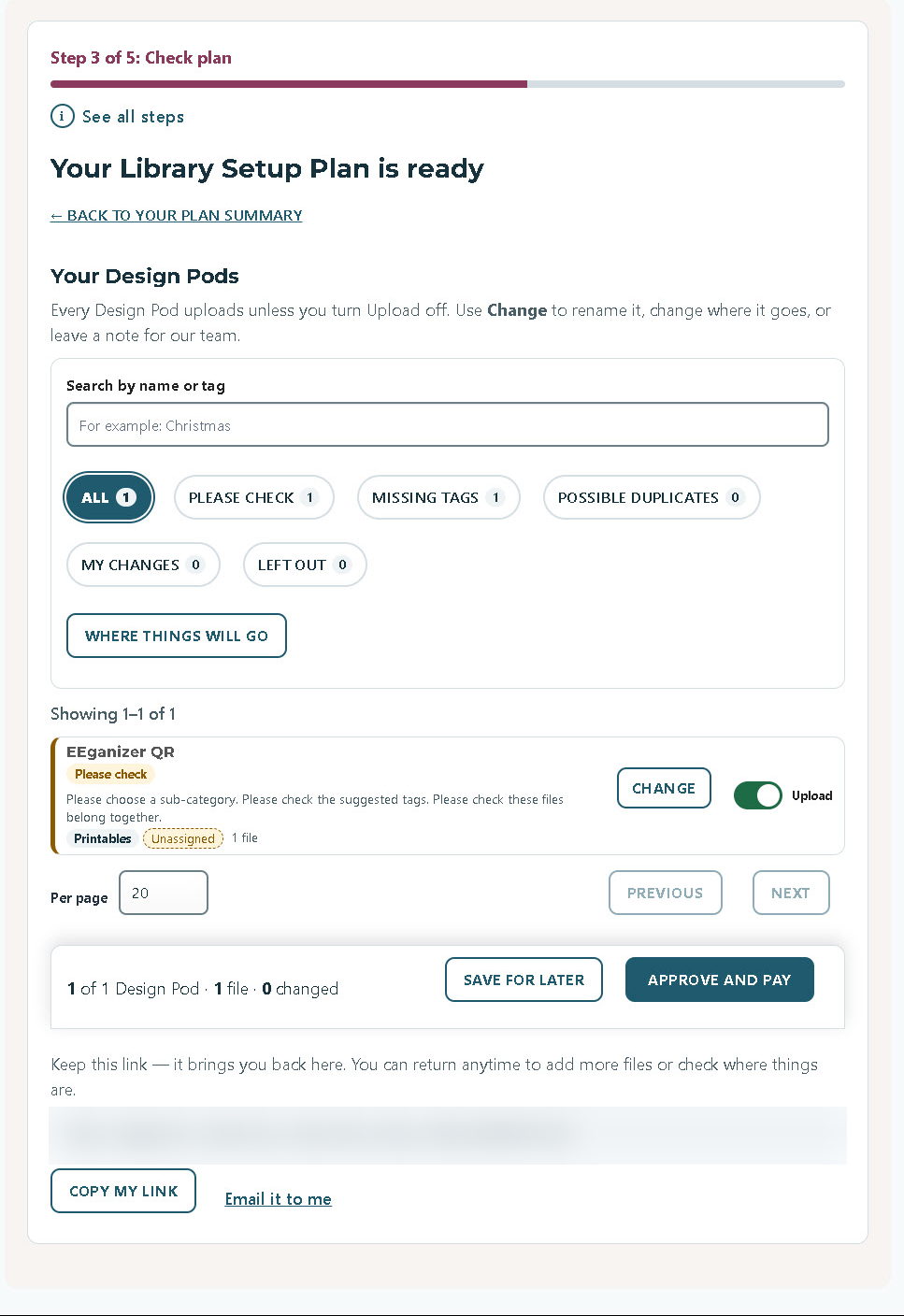
- Review your Design Pods: Search by name or tag, or use the filters: Please check, Missing tags, Possible duplicates, My changes and Left out. Click Change to rename a Design Pod, change where it goes, or leave us a note. Every Design Pod uploads unless you turn its Upload switch off. When you are done, click Approve and pay.
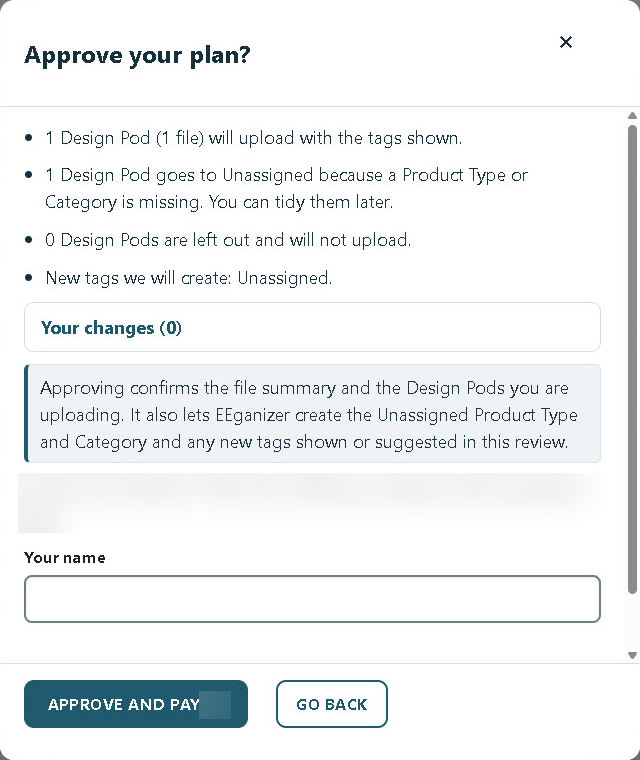
- Approve your plan: A box sums up what will upload, what goes to Unassigned, what is left out and any new tags. Click Your changes to see what you changed. Type your name, then click Approve and pay. To keep reviewing, click Go back.
- What happens next: You move on to Step 4 to pay. Questions? Email support@eeganizer.com.
Step 4: Pay
- One step left: Your plan is held exactly as you approved it. The page shows your price and the date it is held until. Click Approve and continue to secure payment to pay. To make changes first, click Change my plan. If you do not pay, nothing is uploaded, and you can come back and pay later.
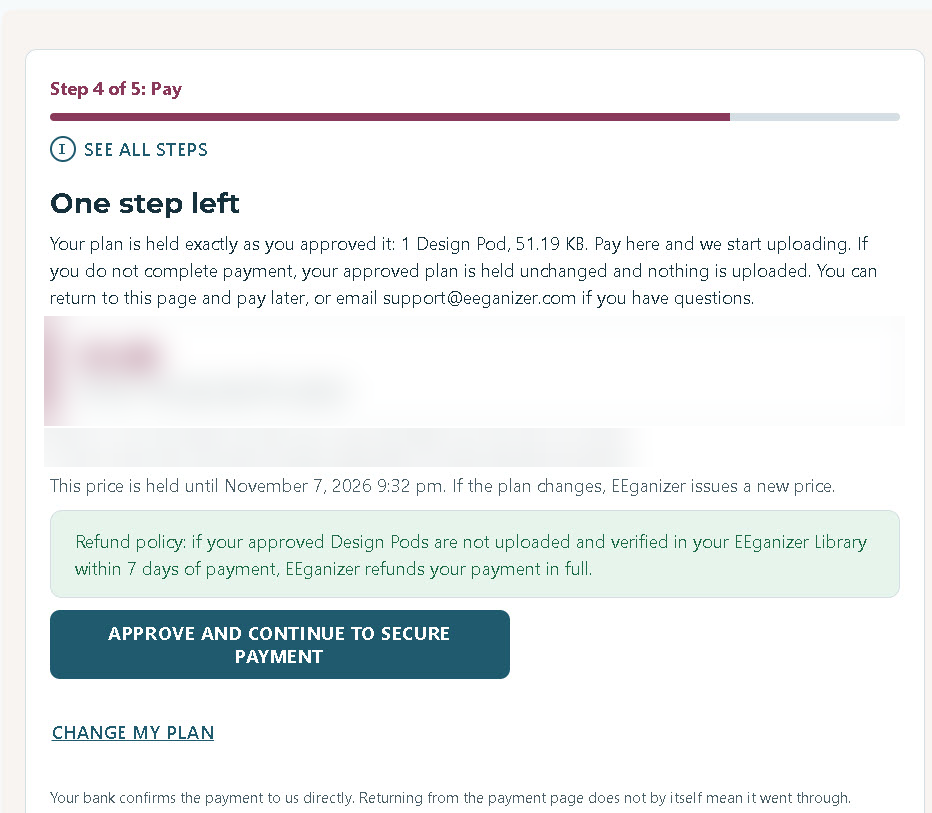
- Refund policy: If your approved Design Pods are not uploaded and verified in your EEganizer Library within 7 days of payment, EEganizer refunds your payment in full.
- Checking your payment with the bank: After you pay, this screen shows while your bank confirms the payment. It updates on its own. Please do not pay again. A second payment is not needed. Still here after a few minutes? Close the page. We email you the moment it clears.
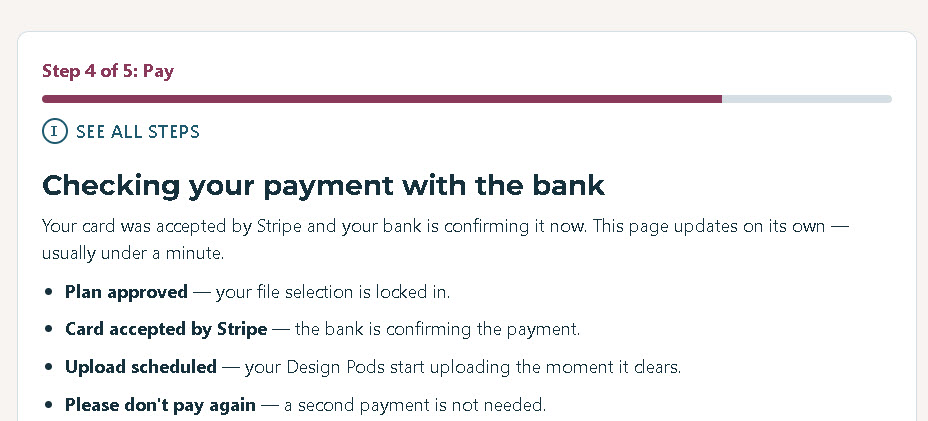
- What happens next: Your Design Pods start uploading once the payment clears. Your files are uploaded to your library in 1 to 3 days. Questions? Email support@eeganizer.com.
Step 5: Done
- Your setup is complete: This screen shows what was and was not uploaded. Files that were not uploaded stay in the original files you sent. They are not deleted.
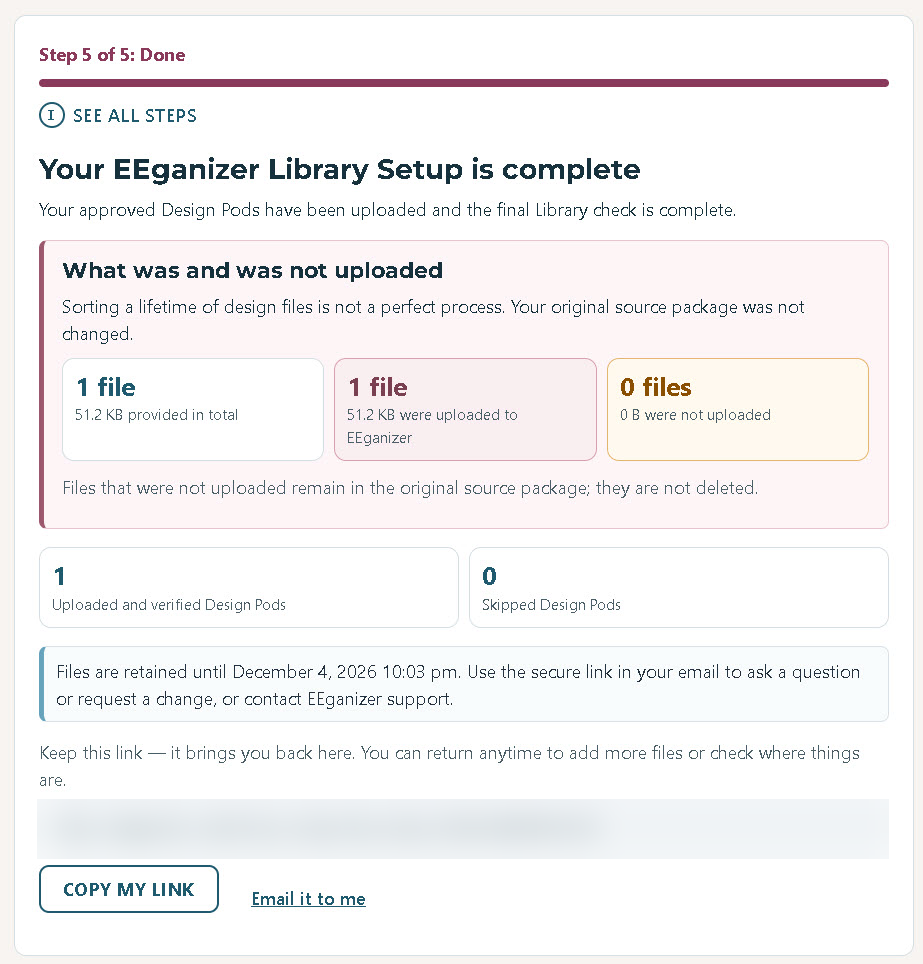
- We keep your files for 30 days: The page shows the exact date.
- Questions or changes: Use the secure link in your email to ask a question or request a change, or email support@eeganizer.com.
- What happens next: Your message reaches our support service, and we get back to you by email.
Keep this link
Most screens show a Keep this link box with your own Library Setup link. It brings you back to your setup anytime, to add more files or check where things are.
- Copy my link: Click Copy my link, then paste it somewhere safe, like a note or an email to yourself.
- Email it to me: Click Email it to me to get the link in your email.
- What happens next: Open the link anytime to pick up where you left off. Lost it? Email support@eeganizer.com and we will help.
If something is missed
- Before you approve: Look over your plan. If anything looks wrong or is missing, click Change on that Design Pod and leave us a note before you approve. We will review your notes and fix your plan.
- If something goes wrong: If something does not work as expected, or a design is missing after the upload, email support@eeganizer.com.
- What happens next: We will take a look and fix it, or help you add the design to your library.